1 Establish direct deposit within three months of account opening or maintain a monthly average balance of $500 per statement period to waive an $8 monthly fee.
2 Monthly average combined balances include checking, savings and money market accounts and all WSFS Consumer Loan and Lines outstanding excluding WSFS Mortgages and Credit Cards.
3 Early Pay requires eligible direct deposit to your WSFS Bank account. Direct deposits that are eligible for Early Pay include Automated Clearing House (ACH) transactions that WSFS Bank has determined to be compensation for employment or government benefit payments based on the transaction entry description. If the originating entity, such as an employer, has submitted the ACH file at least two days prior to the effective payment date, WSFS Bank may make the funds available up to two days earlier than the effective date for any WSFS Bank Customers who are recipients. When and if these funds can be credited early is dependent on the payer’s payment instructions, how the transaction is coded, and when the payment file is submitted by the payer. This also means that timing of available funds may vary between payment periods. WSFS Bank does not guarantee that you will receive early credit for eligible direct deposits and you should always confirm your Available Balance before attempting to make a withdrawal or purchase. Nonpayroll, tax payments, and other automated payments to your account may not be available for Early Pay. We may cancel Early Pay at any time and without notice. You may cancel Early Pay at any time by calling WSFS Bank at 888.973.7226. New accounts must be opened for 30 days to be eligible for Early Pay.
4 Visa’s Zero Liability policy covers U.S.-issued cards only and does not apply to ATM transactions, PIN transactions not processed by Visa, or certain commercial card transactions. Cardholder must notify issuer promptly of any unauthorized use. It also excludes a transaction made by a person authorized to transact business on the account and/or a transaction made by a cardholder that exceeds the authority given by the account owner.
PayPal is a trademark of PayPal, Inc., registered in the United States and other countries.
Apple, the Apple logo and Apple Pay are trademarks of Apple Inc., registered in the U.S. and other countries.
Samsung Pay is a registered trademark of Samsung Electronics Co., Ltd.
5WSFS Bank Clients are eligible for the Greenlight SELECT plan at no cost when they connect their WSFS Bank account as the Greenlight funding source for the entirety of the promotion. Subject to minimum balance requirements and identity verification. Upgrades will result in fees directly to WSFS Bank Clients. Upon termination of promotion, Clients will be responsible for associated monthly fees. See terms for details. Offer ends 3/4/2027. Offer subject to change and partner participation.
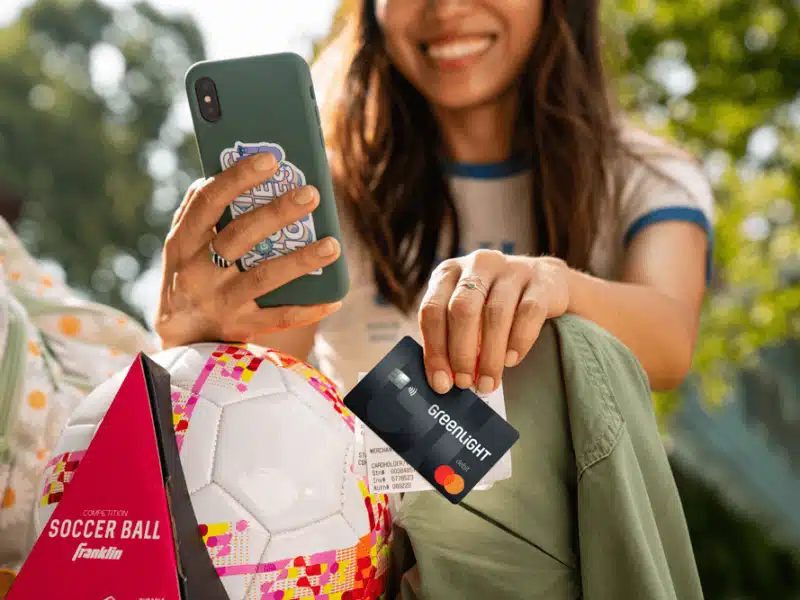
The Greenlight platform and Greenlight debit card are not WSFS Bank products and are not managed by WSFS Bank. The Greenlight card is issued by Community Federal Savings Bank, member FDIC, pursuant to license by Mastercard International.
Card images shown are illustrative and may vary from the card you receive.